
The Transform node is a versatile tool for scaling, rotating, and adjusting the dimensions of your artwork. What makes this node special is its dual functionality: it can target either your entire document (like changing the canvas size) or only specific layers (like scaling a placed logo).
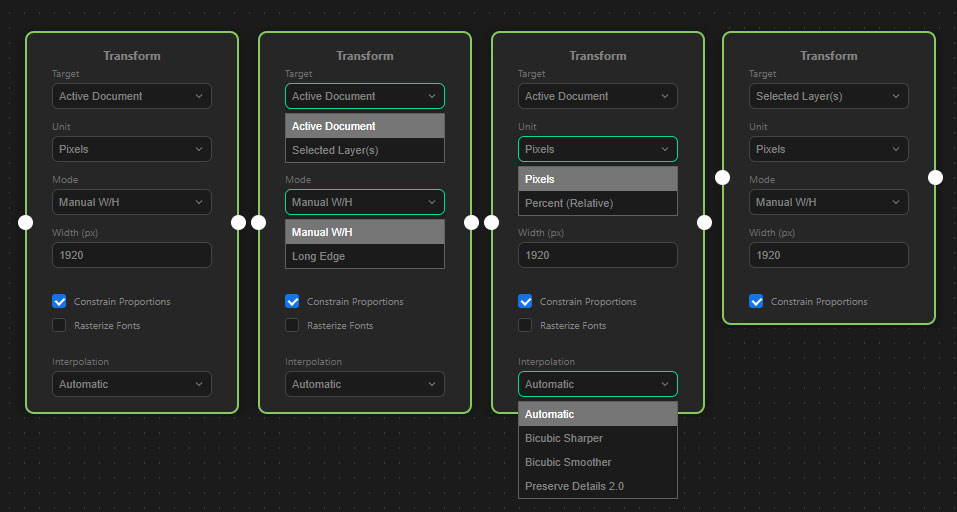
1. Target: Active Document
When set to “Active Document”, the node changes the properties of the entire Photoshop file.
Available Modes:
- Image Size (Manual): Resizes the whole image to an exact width and height.
- Constrain Proportions: Check this box to lock the aspect ratio. If checked, you only need to enter the width, and the height will calculate automatically.
- Image Size (Long Edge): Automatically detects if the image is landscape or portrait and resizes the longest side to your specified value, keeping proportions intact.
- Canvas Size: Changes the size of the working area without scaling the actual image content.
- Anchor Grid: Use the 9-point grid to determine where the existing image should sit within the new canvas.
- Relative (Add to size): If checked, the values you enter are added to the current canvas size instead of defining a new absolute size.
- Extension Color: Choose the background color for any newly added canvas area (e.g., White, Black, Gray, or your current Foreground/Background color).
- Image Rotation: Rotates or flips the entire document. Options include 180°, 90° Clockwise, 90° Counter Clockwise, Flip Horizontal, and Flip Vertical.
Global Document Option:
- Rasterize Fonts: When scaling down significantly, Photoshop text layers can sometimes shift. Checking this box converts all text layers to pixels before resizing to preserve their exact look.
2. Target: Selected Layer(s)
When set to “Selected Layer(s)”, the node only affects the currently active layers in your document, leaving the rest of the canvas untouched.
Available Modes:
- Manual W/H (Size): Resizes the layer to an exact dimension.
- Special Unit – “% of Doc”: When targeting layers, this unique unit becomes available. If you set the Width to 50 % of Doc, the layer will scale to take up exactly half the width of your document canvas, regardless of the layer’s original size.
- Long Edge (Size): Resizes the layer so its longest side matches your target value.
- Layer Rotation: Rotates or flips the specific layer.
- Angle (°): Enter any precise degree value between -360 and 360.
- Flip: Choose to flip the layer horizontally or vertically.
3. Universal Settings
These options apply to both Document and Layer transformations (where applicable):
- Unit: Choose the measurement unit for your transformation (Pixels or Percent).
- Interpolation: Choose the algorithm Photoshop uses to render the pixels when scaling (e.g., Automatic, Bicubic Sharper for reduction, Preserve Details 2.0 for enlargement). This ensures the highest possible quality for your specific task.
How to connect it
- Input Port (Left): Connect this to a node that ensures a document or layer is active (e.g., Open Document or Select Layers).
- Output Port (Right): Connect this to your next processing step or a Save Document node.
Passt das so für dich, oder möchtest du noch ein bestimmtes Beispiel (wie einen Use-Case) mit in diesen Text aufnehmen?