
The Select Layers node acts as an automated search-and-highlight tool within your Photoshop document. It scans through your active file and selects specific layers based on your defined criteria.
This node is essential when you need to target a particular layer (like a logo placeholder or a background) before applying an action, transforming it, or replacing its content.
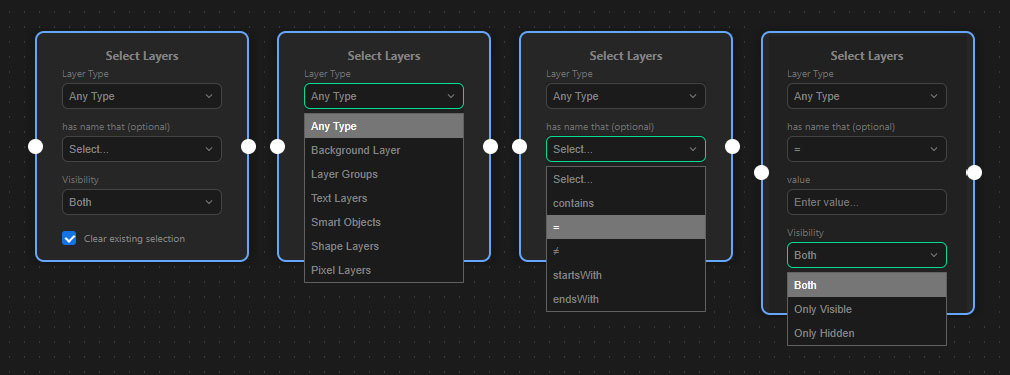
Filtering Options
You can narrow down your selection using three main filters:
- Layer Type: Choose exactly what kind of layer you are looking for.
- Available types: Pixel, Text, Smart Object, Group, Shape, Adjustment, Frame, Video, or Background.
- Note: If you choose “Background,” the node will specifically look for the locked background layer and ignore name or visibility filters.
- Name (Optional): Filter layers by their exact name or parts of it.
- You can choose an operator (e.g.,
=,≠,contains,startsWith,endsWith) and enter a specific text value.
- You can choose an operator (e.g.,
- Visibility: Choose whether to select layers that are currently Visible, currently Hidden, or both (Both).
Note: The node searches through your entire document, including layers hidden deep inside nested groups.
Selection Behavior
- Clear existing selection: This checkbox is enabled by default. When checked, the node will deselect any currently highlighted layers in your Photoshop Layers panel before selecting the new ones.
- Tip: Uncheck this box if you want to add the newly found layers to your already active selection.
How to connect it
- Input Port (Left): Connect this to a node that ensures a document is open and active (such as the output of an Open Document or a For Each node).
- Output Port (Right): Connect this to the next action you want to perform on the newly selected layers (e.g., a Transform or an Actions node).