
While the For Each node points to a whole batch of files, the Select File node is your pointing finger for a single specific file on your computer.
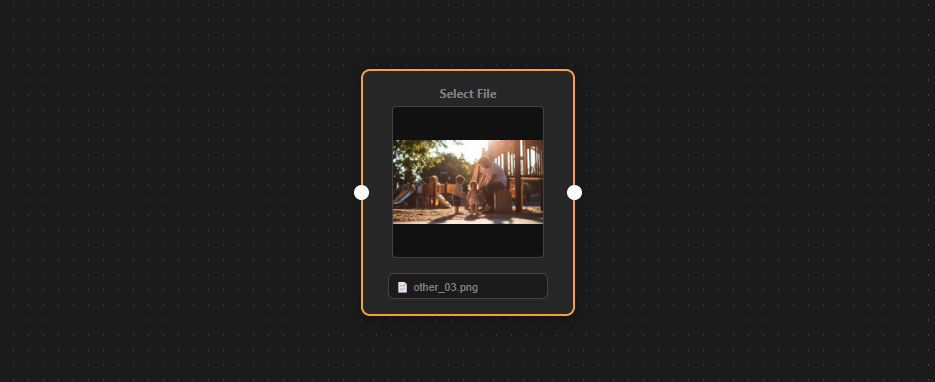
Key Features
- The File Picker: Click the “Choose file…” button, or click directly on the preview area, to open your system’s file browser and select an image.
- Visual Preview: Once a file is selected, a thumbnail preview appears directly inside the node so you can quickly identify the asset. The file name will also be displayed on the button itself.
- Smart Pathing & Warnings: The node safely remembers the exact file location on your hard drive. If you move, rename, or delete the file later, the node will visually alert you with a red border and a warning text: “⚠️ File missing!”.
How to use it
- Select your asset: Add the node to your canvas and choose your desired image.
- Pass it forward: This node does not open the image by itself; it merely holds the file information ready for the workflow.
- Connect to an action: You must connect its output port (on the right) to a node that actually uses files, such as the Open Document node or the Place Image node.
Important: If you run the workflow without choosing a file inside this node, the process will immediately stop and show an error.