
The Save Document node exports your currently active Photoshop file into a specific folder and format.
This node is typically placed at the end of a workflow chain (or right before a Close Document node) to ensure all your automated edits are securely written to your hard drive.
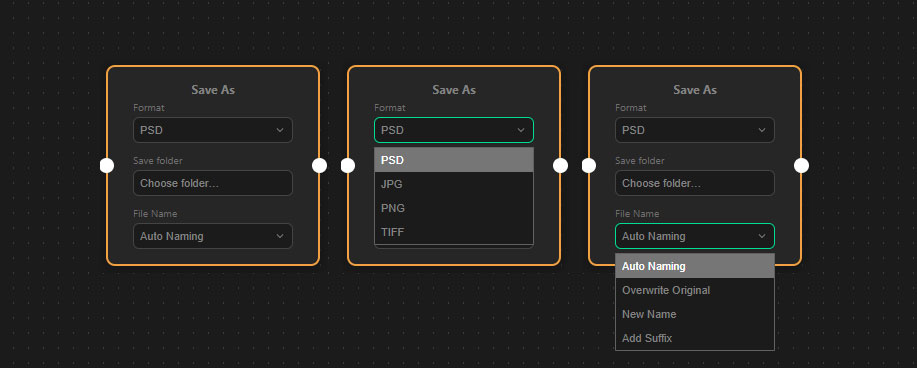
Format Settings
You can choose the exact file format for your export:
- PSD: Saves as a standard layered Photoshop file.
- JPG: Saves as a flattened JPEG image. A slider will appear allowing you to set the JPG Quality from 10% to 100%.
- PNG: Saves as a PNG format.
- TIFF: Saves as a TIFF file.
Folder Selection
Click the “Choose folder…” button to select the destination directory on your computer.
- Note: If no folder is selected, the workflow will fail, and the node will be marked with a red error border.
File Naming
The node provides four different modes to handle how the exported file is named:
- Auto Naming: Generates a smart, unique name to prevent overwriting. It combines the original filename with the name of the layer you just modified (e.g., when using Smart Object Replace).
- Overwrite Original: Replaces the exact original file. No numbers or suffixes are added.
- New Name: Allows you to type a completely new
Custom Namefor the file. If a file with that name already exists, ezActions will automatically add numbers (e.g.,_001) to prevent overwriting. - Add Suffix: Keeps the original filename but adds a specific text to the end, such as
_copyor_edited.
Troubleshooting
- Node turns red: The node requires a valid Save folder. If you selected New Name or Add Suffix, the input fields for the name/suffix cannot be empty.
- “No active document”: The workflow will stop if there is no image currently open in Photoshop to save. Ensure an Open Document node was used earlier in the chain.