
The Place Image node takes an image file and inserts it directly into your currently active Photoshop document as a new Smart Object layer.
This node is ideal for tasks like automatically adding a watermark, inserting a logo, or overlaying a texture onto a batch of images.
Important Prerequisite
Because this node actually inserts a file into an already open document, it requires two things to work:
- An active document must already be open in Photoshop.
- The workflow must have an active “file context” holding the image to be placed. Therefore, you must connect a file-providing node (like Select File or a For Each node set to “File in folder”) before the Place Image node.
Customization Settings
Once the image is placed, the node automatically configures it based on your settings:
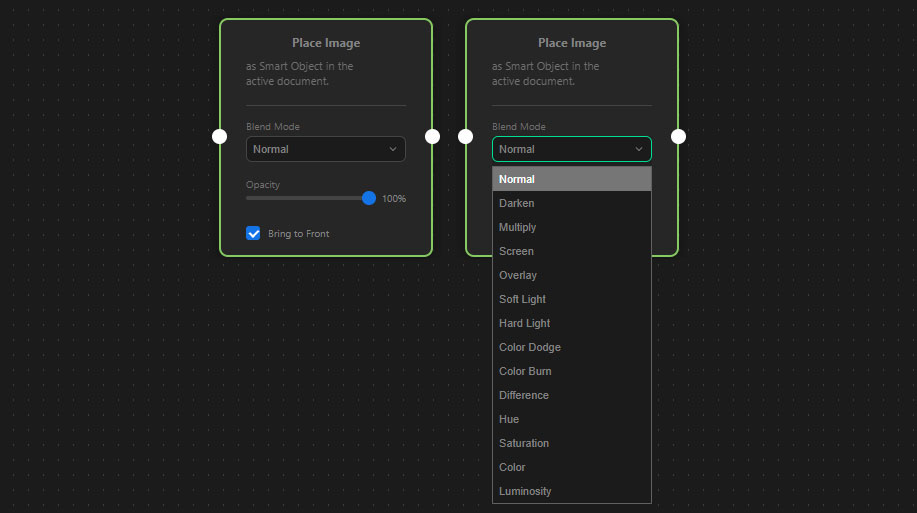
- Blend Mode: Defines how the new image blends with the layers beneath it. You can choose from Photoshop’s standard blend modes, including Multiply, Screen, Overlay, Soft Light, and more.
- Opacity: Use the slider to adjust the transparency of the placed image from 0% to 100%.
- Bring to Front: Checked by default. This ensures the newly placed image is automatically moved to the very top of your layer stack, so it is never hidden behind existing elements. If you uncheck this, the image will simply be placed directly above whichever layer happens to be active at that moment.
How to connect it
- Input Port (Left): Connect this to the node that provides the file you want to place (e.g., Select File).
- Output Port (Right): Connect this to the next action you want to perform (e.g., a Transform node to scale the watermark, or a Save Document node).
Troubleshooting
- “No active document found”: Ensure you have a document open, or use an Open Document node earlier in the workflow to create an active canvas.
- “No file passed from previous node”: Ensure a Select File or For Each node is properly connected before this node in the chain to provide the image.