
The If Condition node adds decision-making capabilities to your workflow. It acts as a checkpoint that evaluates a specific rule and splits your automation into two possible paths based on the result.
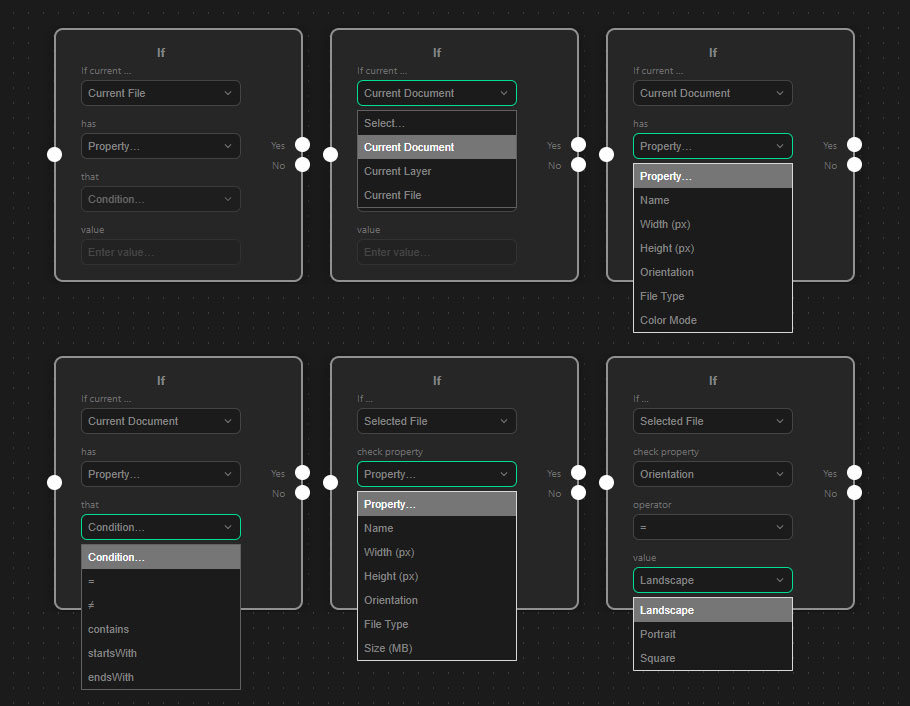
The Core Philosophy: “Read it like a sentence”
The logic of this node is designed to be read as a simple sentence: “If the (Scope) has a (Property) that (Operator) a specific (Value), then proceed to Yes, otherwise proceed to No.”
1. Key Settings (Scope & Properties)
First, you define what needs to be checked (Scope) and which specific attribute to look at (Property):
- Current Document: Evaluates the currently active Photoshop file.
- Checkable properties: Name, Width (px), Height (px), Orientation (Landscape, Portrait, Square), File Type (psd, jpg, png, etc.), and Color Mode (RGB, CMYK, etc.).
- Current Layer: Evaluates the currently active layer.
- Checkable properties: Name, Layer Type (Pixel, Text, Smartobject, Background, etc.), Visible state, and Locked state.
- Selected File: Analyzes file data before the image is actually opened in Photoshop.
- Special Feature: Thanks to a built-in binary parser, ezActions can instantly read the width, height, and orientation directly from the file headers (PSD, JPG, PNG, GIF) without the time-consuming process of loading the image into Photoshop first.
- Checkable properties: Name, Width (px), Height (px), Orientation, File Type, and Size (in MB).
- Note: This scope requires a preceding node that provides a file context, such as a For Each node.
2. Operators & Comparison Values
Once you have selected the property, you define the condition (Operator):
- Text: Equals (=), Does Not Equal (≠), Contains, Starts With, Ends With.
- Numbers: Equals (=), Does Not Equal (≠), Greater Than (>), Less Than (<), etc.
- Lists & Booleans: Simple matching comparisons.
Note: When performing numerical comparisons (like checking the width), the node automatically rounds values to whole numbers to prevent unexpected decimal rounding errors.
3. Routing (The Output Ports)
Because the workflow must branch based on the result, this node features two output ports:
- The “Yes” Port (Top Right): Triggered if the condition is True (met).
- The “No” Port (Bottom Right): Triggered if the condition is False (not met), or if the requested source cannot be found (e.g., asking for an active layer when no document is open).
Example Use Case
If you only want to process images that are in landscape format:
- Scope: Selected File
- Property: Orientation
- Value: Landscape
- Yes path: Connect this to the Open Document node.
- No path: Leave this empty (or connect a Note node) to simply skip any portrait or square images without opening them.