
The Note node is a crucial organizational tool used to document your workflows. It is perfect for writing down exactly what a complex automation does, leaving yourself important reminders (for example, a hint that a specific folder path needs to be reassigned), or providing clear instructions right on the canvas when sharing your workflow with friends and colleagues.
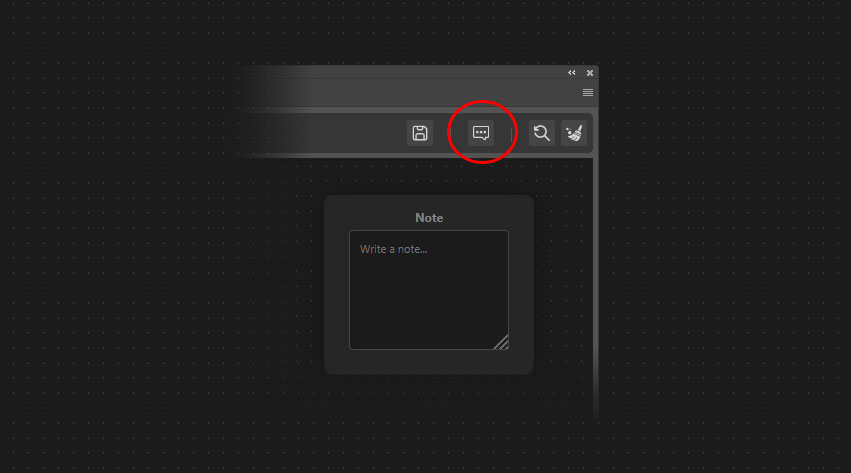
How to add it
Important: Unlike all other nodes in ezActions, the Note node cannot be found in the standard Node Library sidebar. Instead, you must add it to your canvas by clicking the Note icon located in the Top Navigation Toolbar.
Key Characteristics
- Completely Independent: The Note node stands completely free on the canvas. It has absolutely zero input or output ports and cannot be connected to your workflow sequence.
- No Execution: It is purely visual. The execution engine completely ignores the Note node when running the automation, meaning it performs no actions and cannot break your workflow.
- Customizable Size: You can click inside the text box to type your instructions, and drag the bottom-right corner to resize the note to fit your text. The node will automatically remember your custom width and height.